

All tutorials
Guide 2 of 3
Start your Minecraft server
From Start Server to Online, and how to stop without losing progress.
-
Step 1 of 5
Press Start Server
Open your server and press Start Server on Server Home.
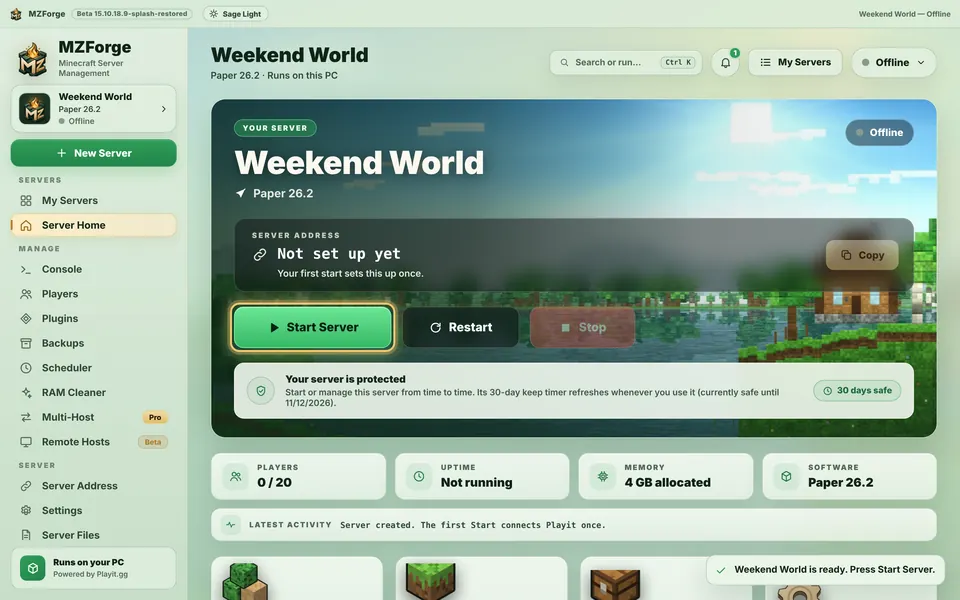
Real MZForge screen · example data -
Step 2 of 5
Watch the startup steps
MZForge shows each step: Server files, Java, Minecraft, Public address, Ready. The first start downloads files, so it takes a little longer — usually 20 seconds to a minute.
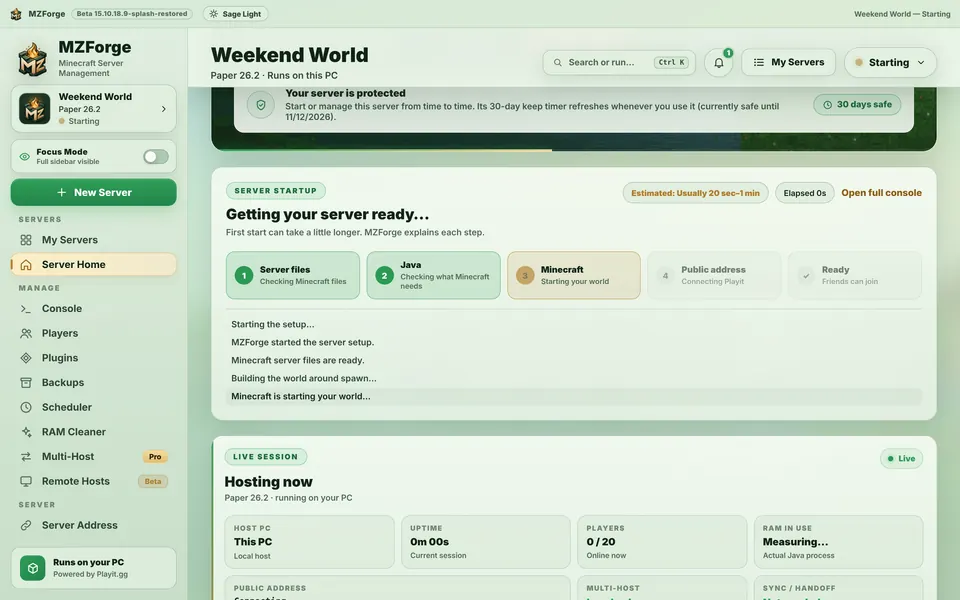
Real MZForge screen · example data -
Step 3 of 5
Online!
When the status says Online, your address appears on Server Home. On Paper and Purpur the first start also asks you to connect Playit — see the next guide.
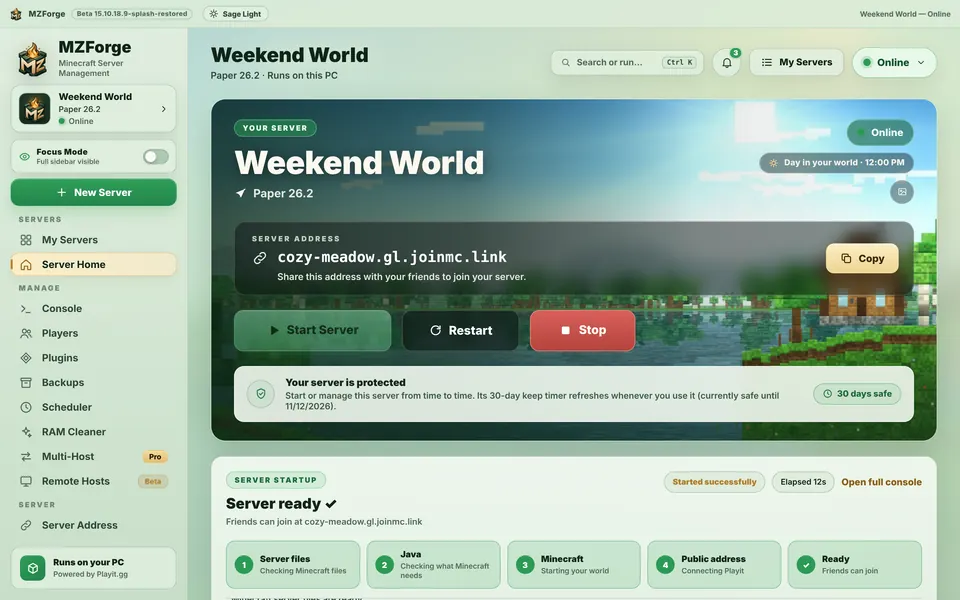
Real MZForge screen · example data -
Step 4 of 5
Use the console if you need it
The Console shows what Minecraft is doing. You don't need it for normal play; quick buttons cover common commands.
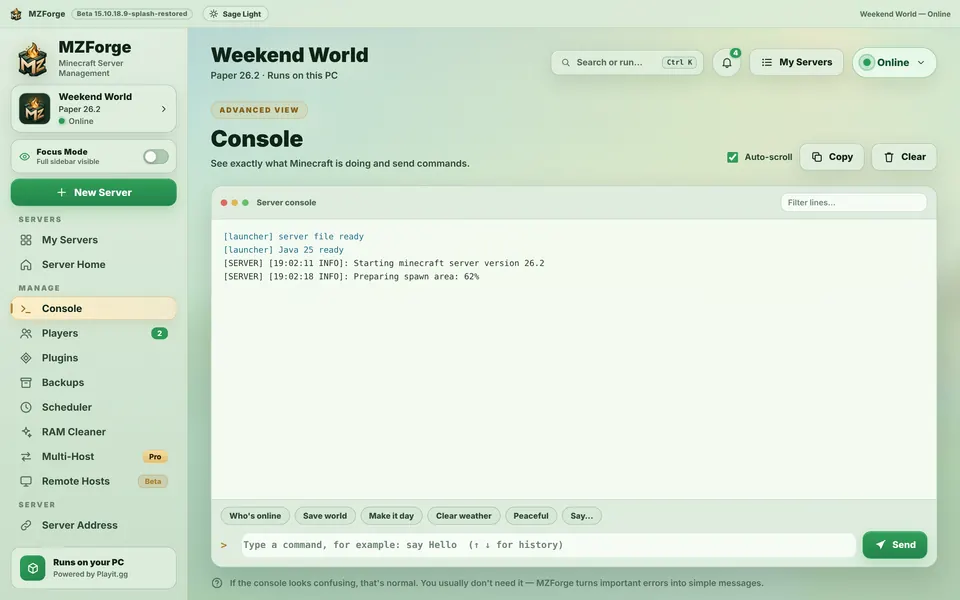
Real MZForge screen · example data -
Step 5 of 5
Stop safely
Press Stop (or use the status menu) and wait until it says Offline, so Minecraft can save the world. Don't force-close Java or switch off the PC mid-save.
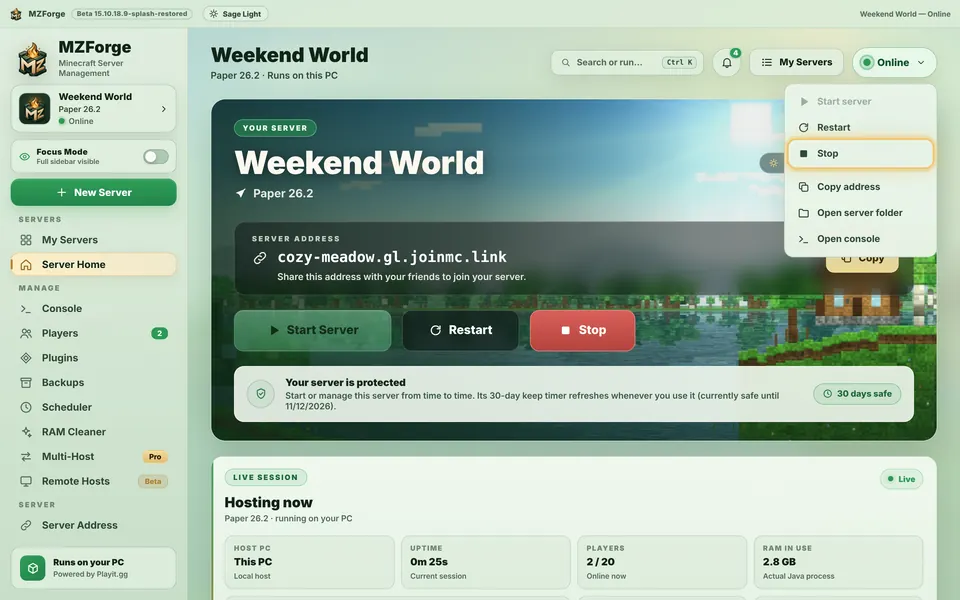
Real MZForge screen · example data


