

Invite friends with Playit
Connect Playit once, then share one address. No router setup on Paper and Purpur.
-
Step 1 of 6
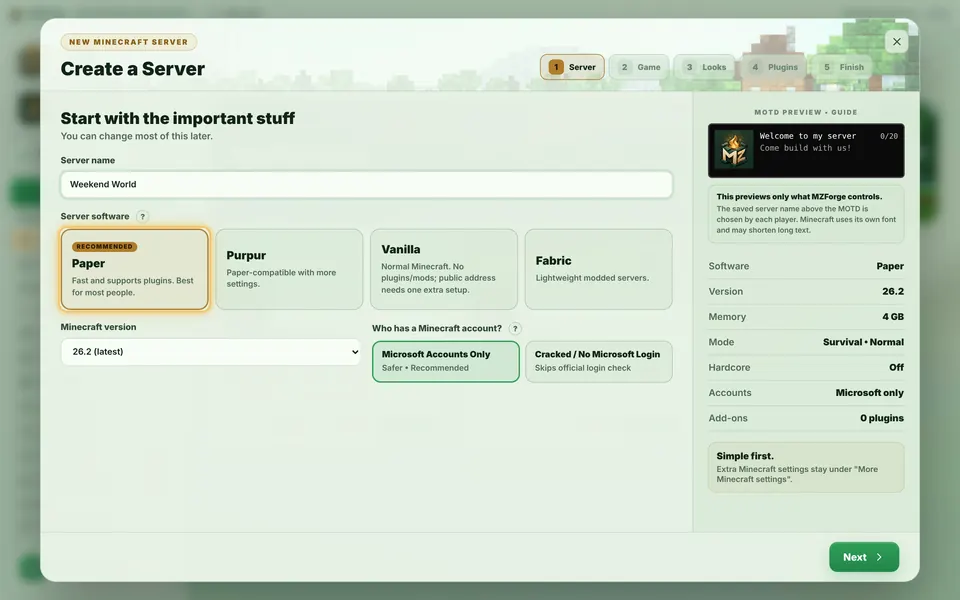
Use Paper or Purpur
Paper and Purpur get the Playit address set up for you. On Fabric and Vanilla you set up the public address yourself in Server Address.
Real MZForge screen · example data -
Step 2 of 6
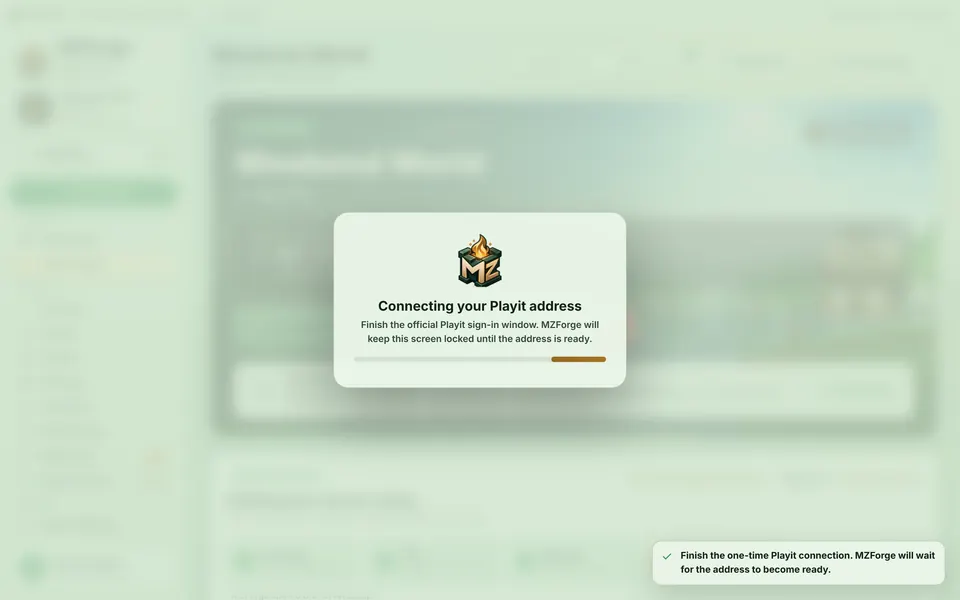
Sign in to Playit once
The first time you start, MZForge opens the official playit.gg page in your browser. Sign in or make a free account there, then come back. MZForge waits and never sees your password.
Real MZForge screen · example data -
Step 3 of 6
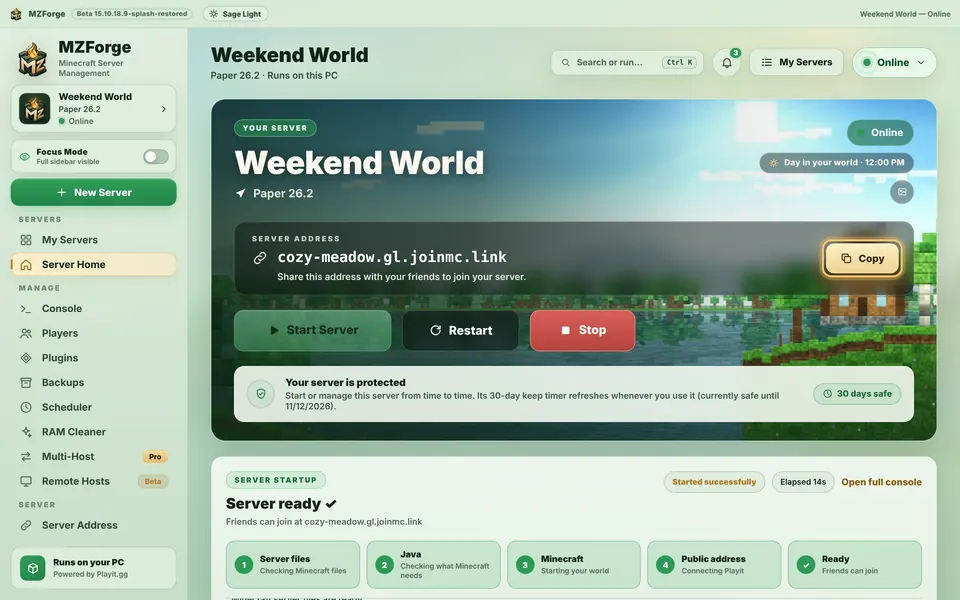
Copy your address
When the server is Online, press Copy next to your address.
Real MZForge screen · example data -
Step 4 of 6
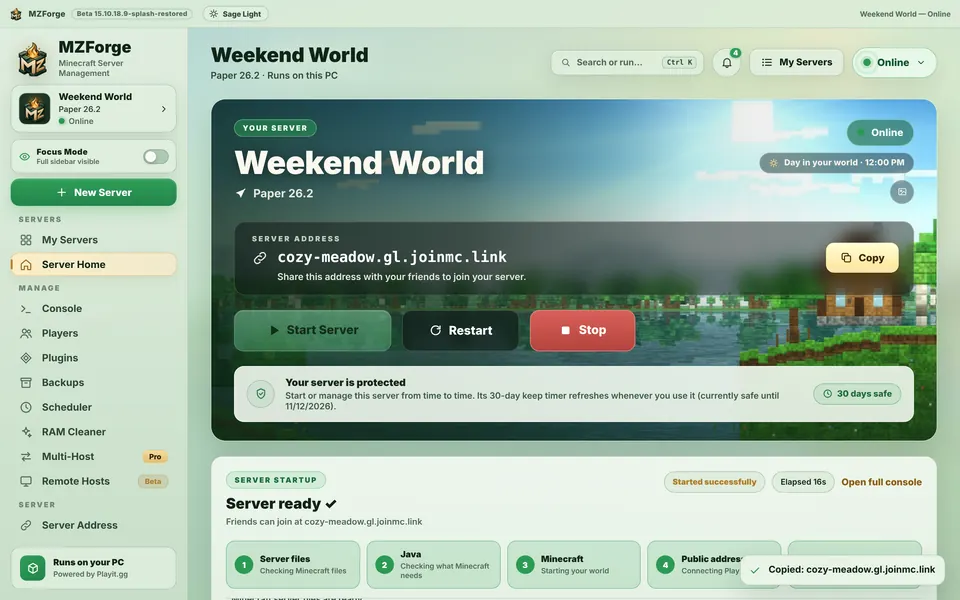
Send it to friends
Paste it into a chat with your friends. The address in these screenshots is an example — yours will be different.
Real MZForge screen · example data -
Step 5 of 6
Your saved address
Server Address shows how friends join. MZForge remembers your Playit connection, so you normally never set it up again.
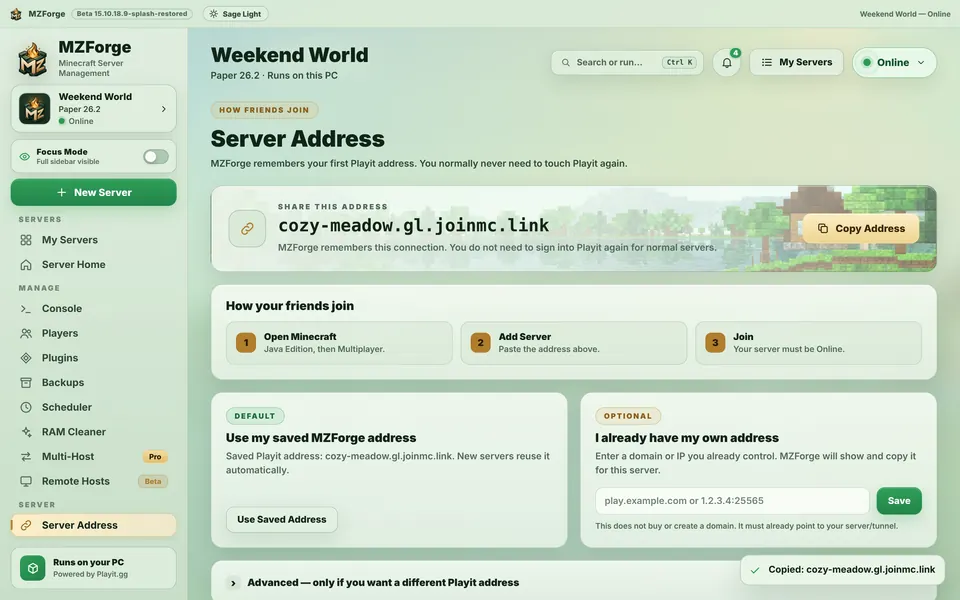
Real MZForge screen · example data -
Step 6 of 6
Friends join
In Minecraft: Java Edition they open Multiplayer → Add Server, paste the address and join. They show up in Players. Your server must be Online.
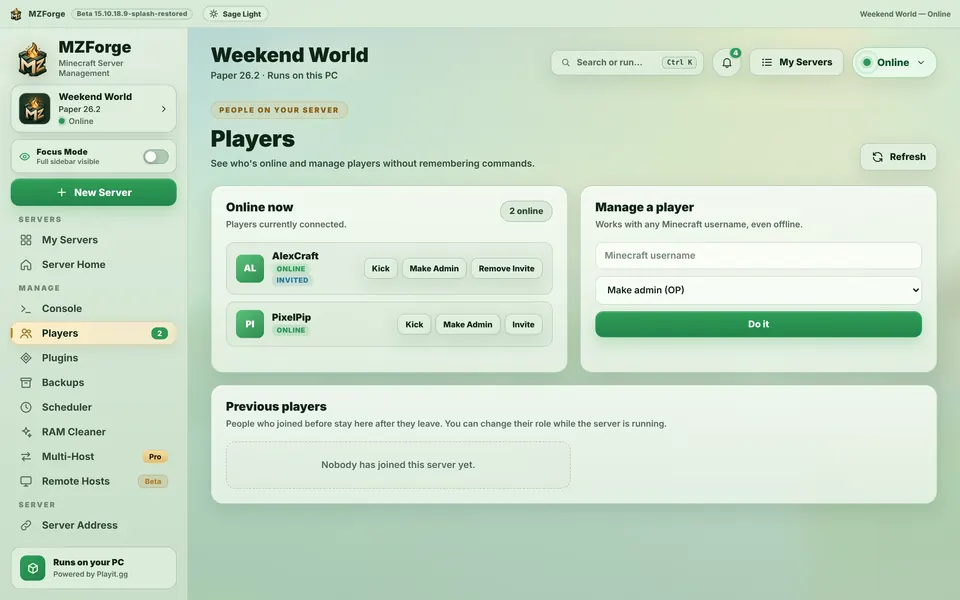
Real MZForge screen · example data


